Quick answer
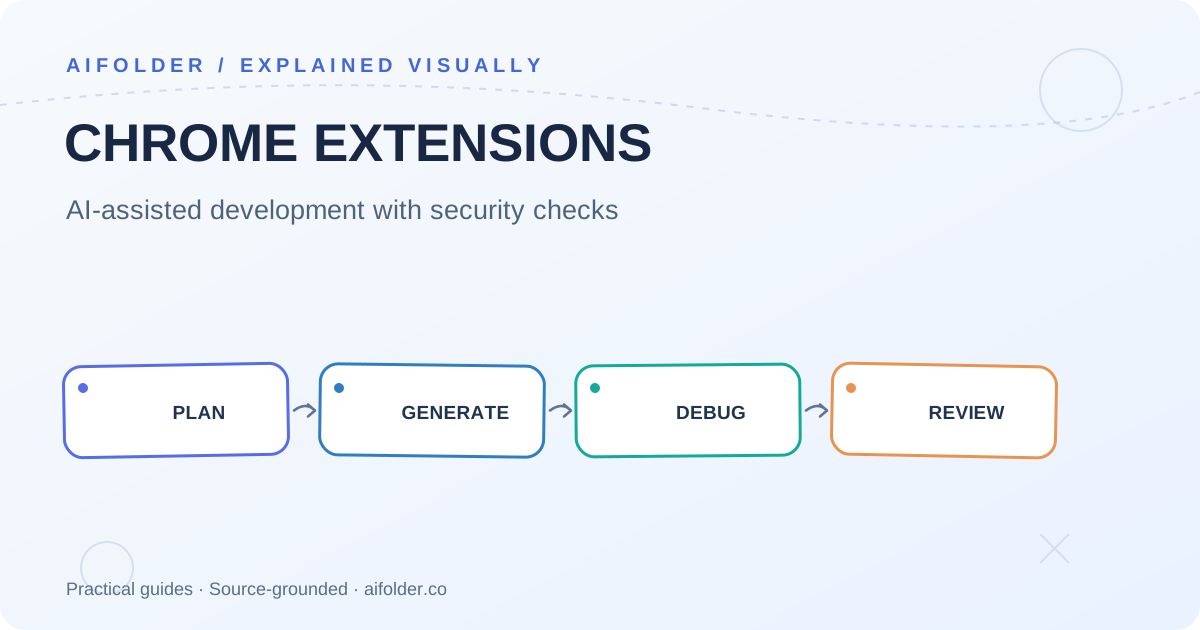
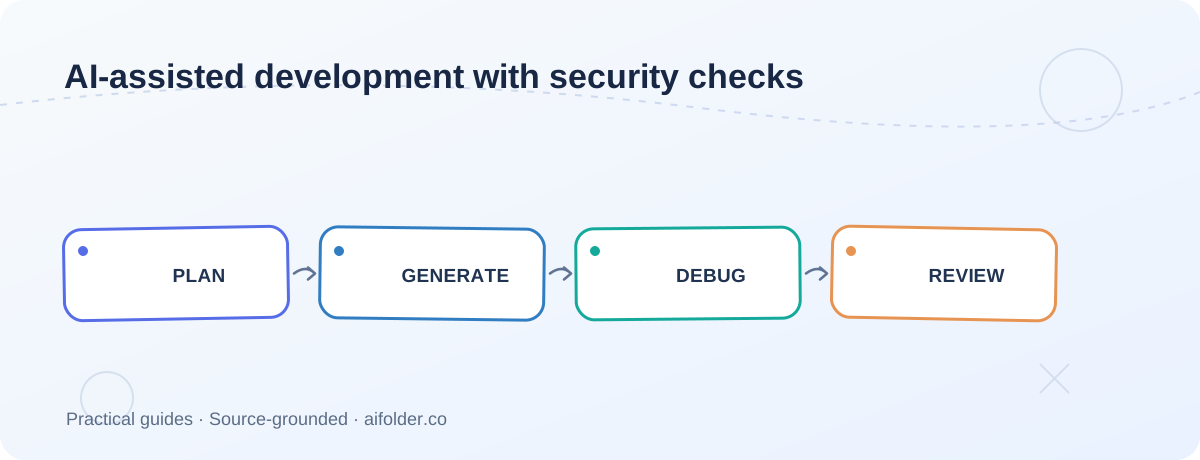
You can use an AI coding agent to plan, generate, and iteratively test a Chrome extension. The reliable approach is to give the agent current platform documentation, narrow permissions, a clear acceptance test, and a way to inspect the actual extension in Chrome. Generating code is only the beginning; installation, debugging, and permission review remain essential.
Why Chrome-specific context matters
Chrome extensions use a specialized architecture, including a manifest, browser-facing UI surfaces, optional service workers, and permissions. A coding agent that treats an extension as a normal web page can make avoidable mistakes. Google's Modern Web Guidance includes extension-specific skills and web best-practice guidance intended to improve the quality of generated code.
Step 1: Define a small, testable extension
Start with a quick-notes popup. Requirements:
- Clicking the extension icon opens a popup.
- The popup contains an accessible text area and a Save button.
- Notes persist across reopening the popup using extension storage.
- The extension requests only permissions required for this behavior.
- Saving, reopening, and error handling can be checked in Chrome.
This scope is deliberately narrower than asking an agent to build an entire productivity platform.
Step 2: Give the coding agent current Chrome guidance
According to Chrome's published instructions, one way to install the guidance is:
npx modern-web-guidance@latest install --chooseSelect the coding agent and the Chrome extensions / modern web guidance skills as appropriate for that tool. Installation details may change; follow the current official guide and avoid blindly pasting third-party setup scripts.
Step 3: Prompt for implementation and testing
Build a Manifest V3 Chrome extension named Quick Notes.
Behavior:
- Popup containing an accessible text area and Save button.
- Persist note in chrome.storage.local.
- Restore saved text when popup opens.
- Display a visible save failure message if storage fails.
Constraints:
- No remote API or unnecessary host permissions.
- Do not add telemetry.
- Include a README with load-unpacked and test steps.
Quality gates:
- Explain every requested permission.
- Test save, reopen, restore, and empty-note flows in Chrome.
- Report any steps you could not verify.
Ask the agent to summarize design decisions and evidence of testing rather than claiming success from code generation alone.
Step 4: Use Chrome DevTools to inspect real behavior
Chrome's guide describes agent-facing DevTools capabilities for installing/reloading extensions and inspecting popups, side panels, and service workers. Depending on the agent setup, Chrome DevTools can be connected as an MCP server or equivalent integration. The official guide documents the necessary extension category and connection flags.
Not all debugging environments have permission to attach to a live browser profile. Confirm the browser's remote-debugging prompts and never grant an agent unnecessary access to personal sessions or sensitive sites.
Step 5: Review security and privacy
Permissions should correspond to documented user-facing behavior. Avoid requesting broad host permissions when a simple notes extension doesn't need them. Audit data storage, network requests, error handling, accessibility, and any third-party dependencies.
If the extension later calls a remote model API, do not embed private API keys in client-side extension code. Move protected credentials behind an appropriately authenticated backend and disclose the data flow.
Step 6: Prepare store submission
The Chrome guidance introduces a CHROMEWEBSTORE.md workflow that records store information and permission justifications. Treat the file as a preparation aid, not proof of compliance or approval. You still need to review the Chrome Web Store's current requirements and actual extension behavior before submitting.
Troubleshooting checklist
- Does the manifest declare only necessary permissions?
- Is the popup registered correctly?
- Is storage asynchronous code handling errors?
- Are button and label accessible via keyboard?
- Are there console errors in popup or service worker?
- Does the extension behave correctly after reload?
FAQ
Can an AI agent publish the extension automatically?
Publishing depends on the connected tools, your permissions, and store review requirements. Do not assume a generated submission file means publication has occurred.
Do I need a paid model or special IDE?
No particular product is mandatory for the workflow, but available integrations and model capabilities differ.
Is Chrome's built-in AI required?
No. Coding an extension with an AI agent is different from embedding built-in AI inference APIs inside the extension.
Source
Explore related guides in AiFolder Blog and browse AI tools and resources.