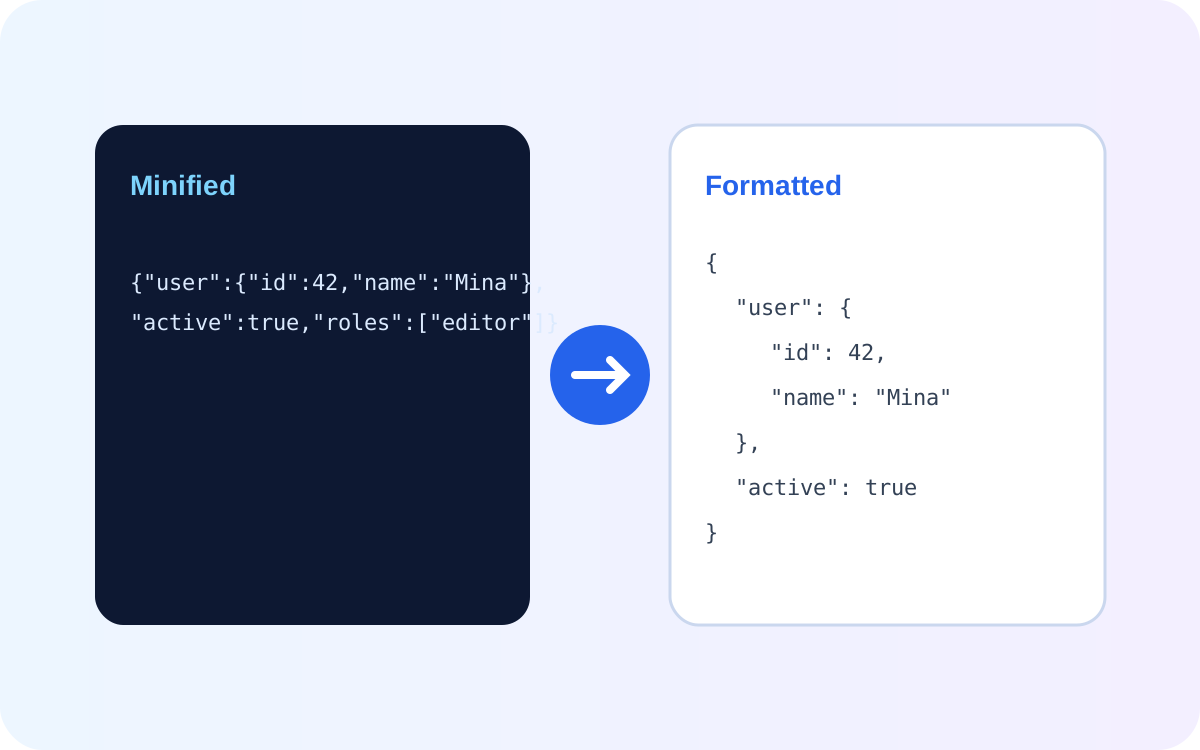
To format JSON online, paste valid JSON into a formatter, choose an indentation level, and prettify it into a readable structure. Formatting changes whitespace and line breaks, not the underlying keys and values.
AiFolder implementation note: formatting, minifying, and validation in the current JSON renderer use JSON.parse() and JSON.stringify() in the browser. The optional Save run action is different: it sends the input and output to an AiFolder API endpoint so the run can be stored.
This distinction matters when you are working with API responses, configuration, webhook payloads, or anything that may contain private values. Use the AiFolder JSON Formatter for formatting and validation, and avoid saving a run when the JSON contains secrets or data you do not want stored.
What JSON formatting actually does
Minified JSON is efficient for transport but difficult to scan:
{"user":{"id":42,"name":"Mina"},"active":true,"roles":["editor","author"]}The same data becomes easier to inspect after formatting:
{
  "user": {
    "id": 42,
    "name": "Mina"
  },
  "active": true,
  "roles": [
    "editor",
    "author"
  ]
}
The object structure is unchanged. Only its presentation changes.
A common JavaScript implementation is:
const formatted = JSON.stringify(JSON.parse(input), null, 2);
JSON.parse() parses valid JSON into a JavaScript value. JSON.stringify() serializes that value back to JSON, and its third argument controls indentation. The MDN JSON.stringify reference documents the indentation behavior in detail.
How to format JSON online
- Open the JSON Formatter.
- Paste JSON or upload a
.jsonfile. - Choose an indentation size. The current AiFolder renderer accepts values from 2 to 8.
- Use Prettify for readable output, Minify for compact output, or Validate to check syntax.
- Copy or download the result when it looks correct.
The formatter updates as the input changes. Invalid input produces a parsing error instead of silently rewriting the JSON into something different.
Formatting is not the same as fixing invalid JSON
A formatter can only produce a reliable result when the input is valid JSON.
This is valid JSON:
{
  "name": "AiFolder",
  "enabled": true
}
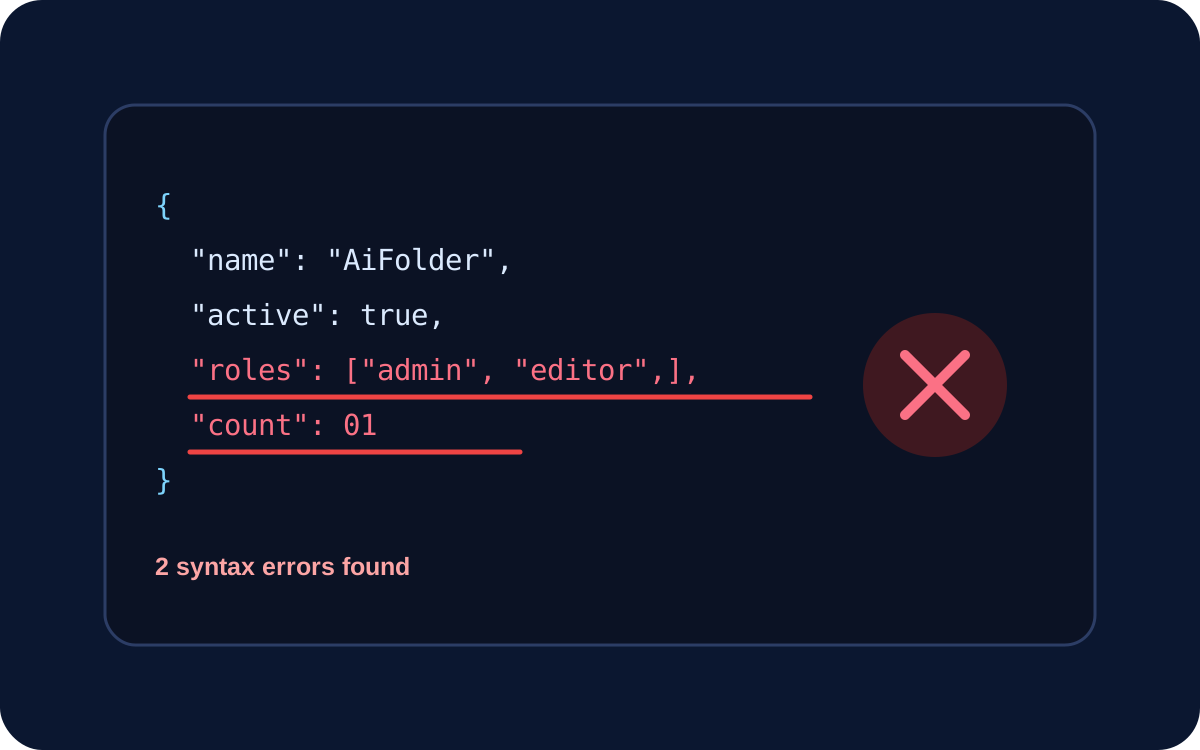
This is JavaScript-like syntax, but it is not valid JSON:
{
  name: 'AiFolder',
  enabled: true,
}
The invalid example has unquoted property names, single-quoted strings, and a trailing comma. A formatter should report the parse failure rather than guess what the author meant. For debugging, the safer workflow is validate first, correct the syntax, then format.
Does AiFolder upload JSON while you format it?
We inspected the current AiFolder JSON renderer used by the tool page. Its formatting path parses the input with JSON.parse() and generates pretty or minified output with JSON.stringify() inside the React component. Uploading a local JSON file reads it with the browser's file.text() method.
There is an important exception: Save run. That action calls AiFolder's run-storage helper, which sends input_json and output_json in a POST request to the tool-runs API. If your payload contains credentials, tokens, customer information, or other sensitive values, do not use Save run unless storing that data is appropriate for your use case.
This is why broad claims such as “nothing ever leaves your browser” can be misleading. The formatting workflow can be local while an optional persistence feature still communicates with the server.
2 spaces or 4 spaces?
There is no JSON rule requiring one indentation size. Pick the level that makes the document easiest to work with:
- 2 spaces: compact and common in JavaScript projects and documentation.
- 4 spaces: gives deeply nested objects more visual separation.
- Minified: removes unnecessary formatting when human readability is not needed.
For teams, consistency matters more than the exact number. If a repository already uses a formatter or style guide, match that convention.
Practical example: formatting an API response
Suppose an API returns this single line:
{"items":[{"id":101,"status":"ready"},{"id":102,"status":"processing"}],"page":1,"hasMore":false}After formatting:
{
  "items": [
    {
      "id": 101,
      "status": "ready"
    },
    {
      "id": 102,
      "status": "processing"
    }
  ],
  "page": 1,
  "hasMore": false
}
You can now see immediately that items is an array containing two objects and that the pagination fields live at the root level. That is the main value of pretty-printing: it makes structure visible without changing the data model.
When an online JSON formatter is useful
Debugging API responses
Pretty output makes nested errors, pagination objects, arrays, and metadata easier to scan while debugging.
Reviewing webhook payloads
Webhook bodies copied from logs are often compact. Formatting helps you locate event names, IDs, timestamps, and nested attributes.
Preparing documentation examples
Readable JSON is easier for another developer to understand and copy than a long minified line.
Normalizing data before a diff
Formatting two JSON documents with the same indentation can reduce meaningless whitespace differences before comparison.
What JSON formatting does not do
- It does not prove that an API response is trustworthy.
- It does not validate a JWT signature.
- It does not encrypt sensitive values.
- It cannot safely infer the intended meaning of arbitrary malformed JSON.
- It does not turn every JavaScript object literal into valid JSON automatically.
Frequently asked questions
Does formatting JSON change the data?
Pretty-printing normally changes whitespace and indentation, not object keys or values. A separate “repair” feature may modify invalid input, so treat repair and formatting as different operations.
Why does my JSON fail to format?
Common causes include trailing commas, single quotes, comments, unquoted property names, unmatched braces or brackets, and invalid escape sequences.
Is it safe to paste private JSON into an online formatter?
Check how the specific tool handles input. AiFolder's current formatting and validation path runs in the browser, but the optional Save run feature sends the run to an API for storage. Avoid saving sensitive payloads.
Can I format a large JSON file in the browser?
Browser performance depends on the payload size, device memory, and implementation. Very large JSON documents can block the UI during parsing and may be better handled with streaming or command-line tooling.
Related AiFolder tools
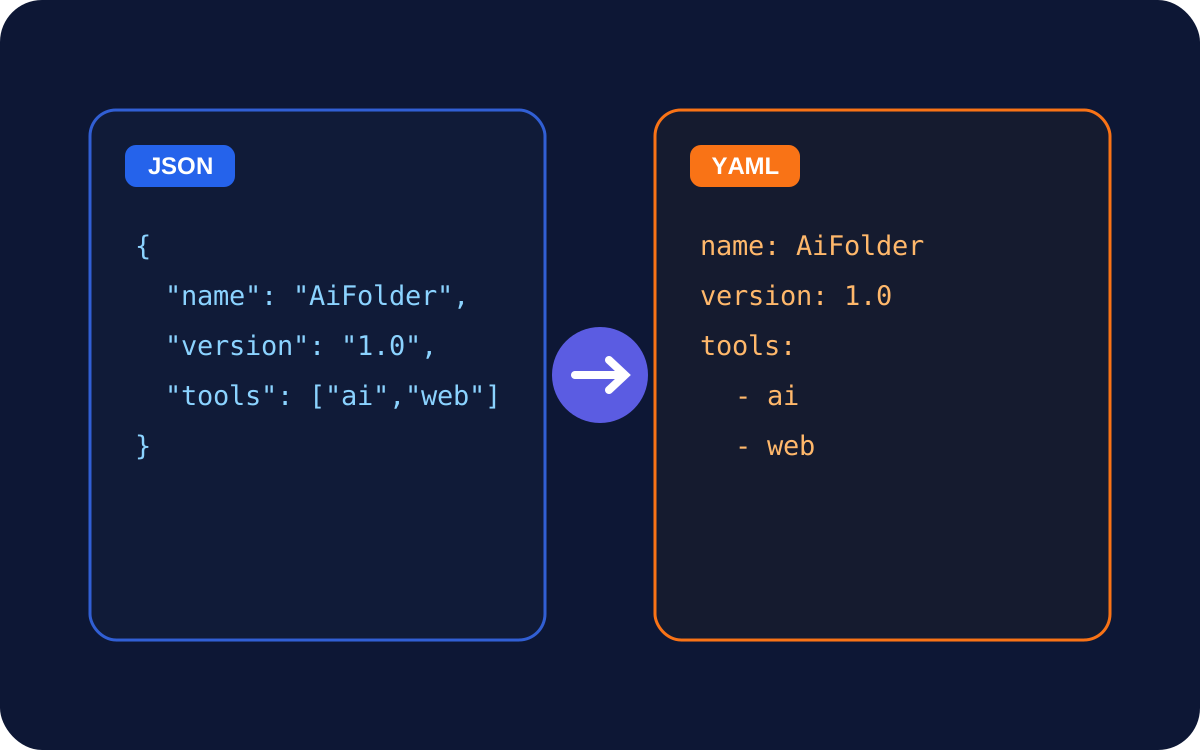
- JSON to YAML for configuration-friendly output.
- JSON to CSV for suitable tabular datasets.
- JSON to XML for XML-based integrations.
- JWT tools for inspecting token data; decoding a token is not the same as verifying its signature.
How we checked this guide
On September 11, 2026, we reviewed AiFolder's JsonPrettifyRenderer and the save_tool_run helper in the site repository. We verified the code paths for parsing, pretty-printing, minifying, validation, file reading, copying, downloading, and optional run persistence. We will update this guide if those behaviors change.