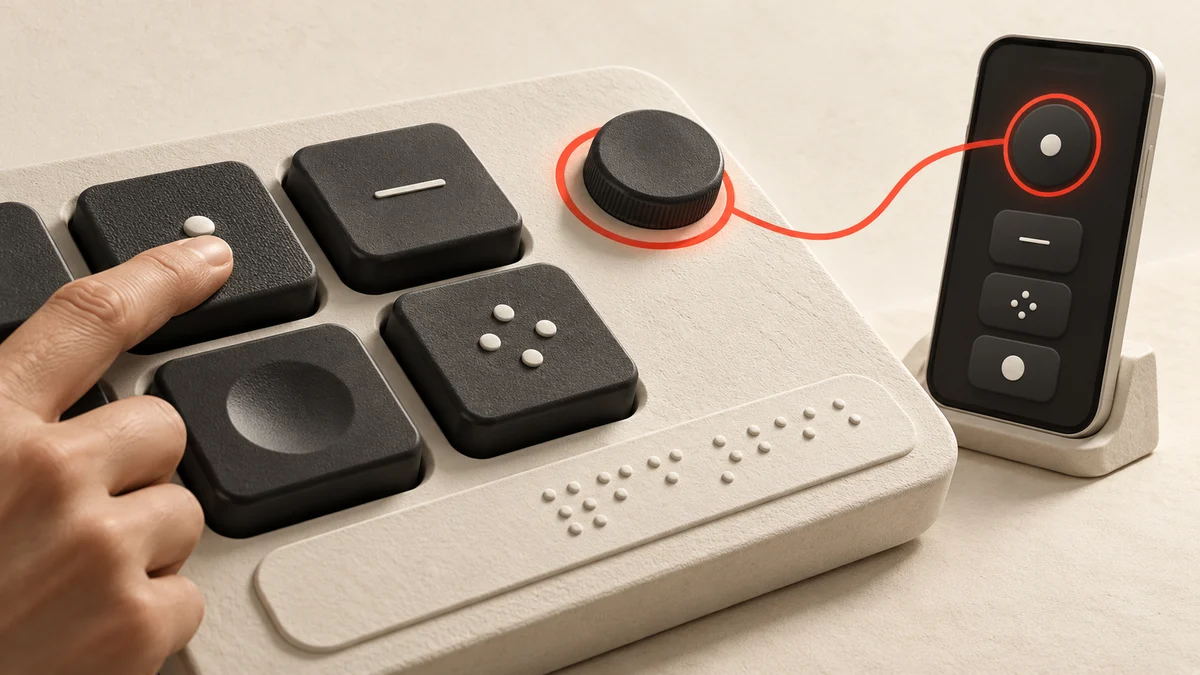
An interface generated during a conversation needs the same usable controls and understandable state as an ordinary application. This article is a test plan for generated UI, not a completed audit of GPT-6 or a claim of WCAG compliance.
Choose tasks, then test state changes
Select a form, a sortable results table and a modal workflow. Write the desired outcome before inspecting the interface. Repeat each task after regeneration because structure and labels may change even when the prompt stays similar.
Use the WCAG 2.2 quick reference to identify applicable criteria. A short checklist does not cover every criterion and cannot certify a product.
Test a complete keyboard journey
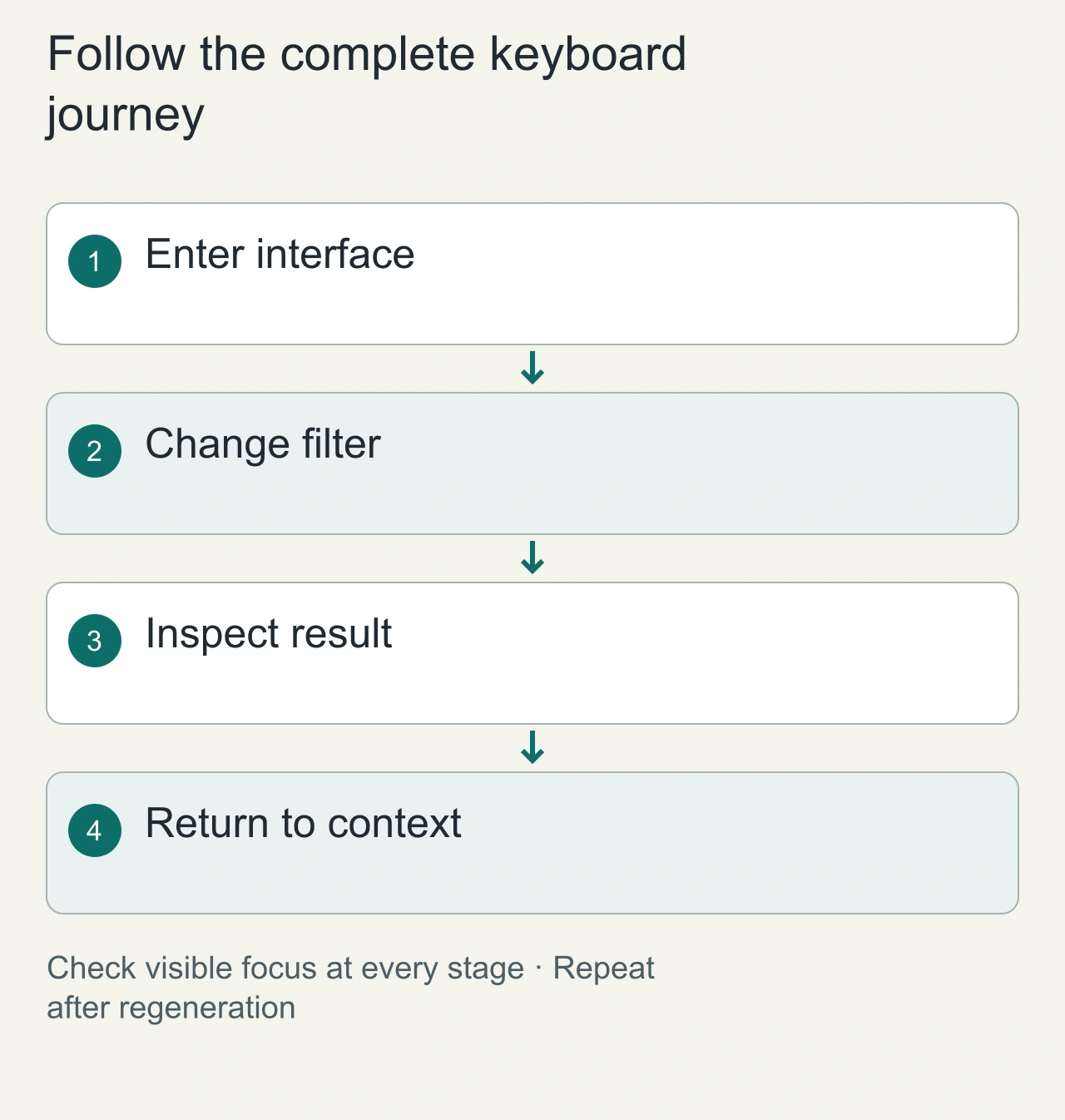
Use a concrete generated interface: a travel comparison form with filters, a result list and a detail panel. Start at the page entry and complete one task without a pointer. Select a filter, inspect a result, open details and return to the list. Record every place where focus disappears, becomes invisible or stops reaching the next required control.
Check the order against the task's reading sequence. A control can be individually focusable while the overall journey is confusing. Composite widgets also need coherent internal navigation. The [WAI keyboard-interface guidance](https://www.w3.org/WAI/ARIA/apg/practices/keyboard-interface/) provides a primary reference for those interaction decisions.
Repeat after the interface regenerates. Keep focus inside the old result panel, trigger a revision and observe what happens when that node is replaced. Define a meaningful destination for focus and explain the change. Moving focus merely because new data arrived can interrupt the user; leaving it on a removed node can lose their position.
For the travel fixture, add one result that becomes unavailable after a filter change. Observe whether the selected detail panel explains the invalidated selection and whether the next valid option is discoverable. Do not silently remove the user's context. Include the case in both keyboard and assistive-technology sessions, with the same task and data. The issue record should contain the prior selection, triggering action and resulting state. This makes a dynamic failure reproducible and gives the implementer a concrete acceptance case for the repaired interaction rather than a vague request to improve accessibility.
Check dynamic state beyond visible controls
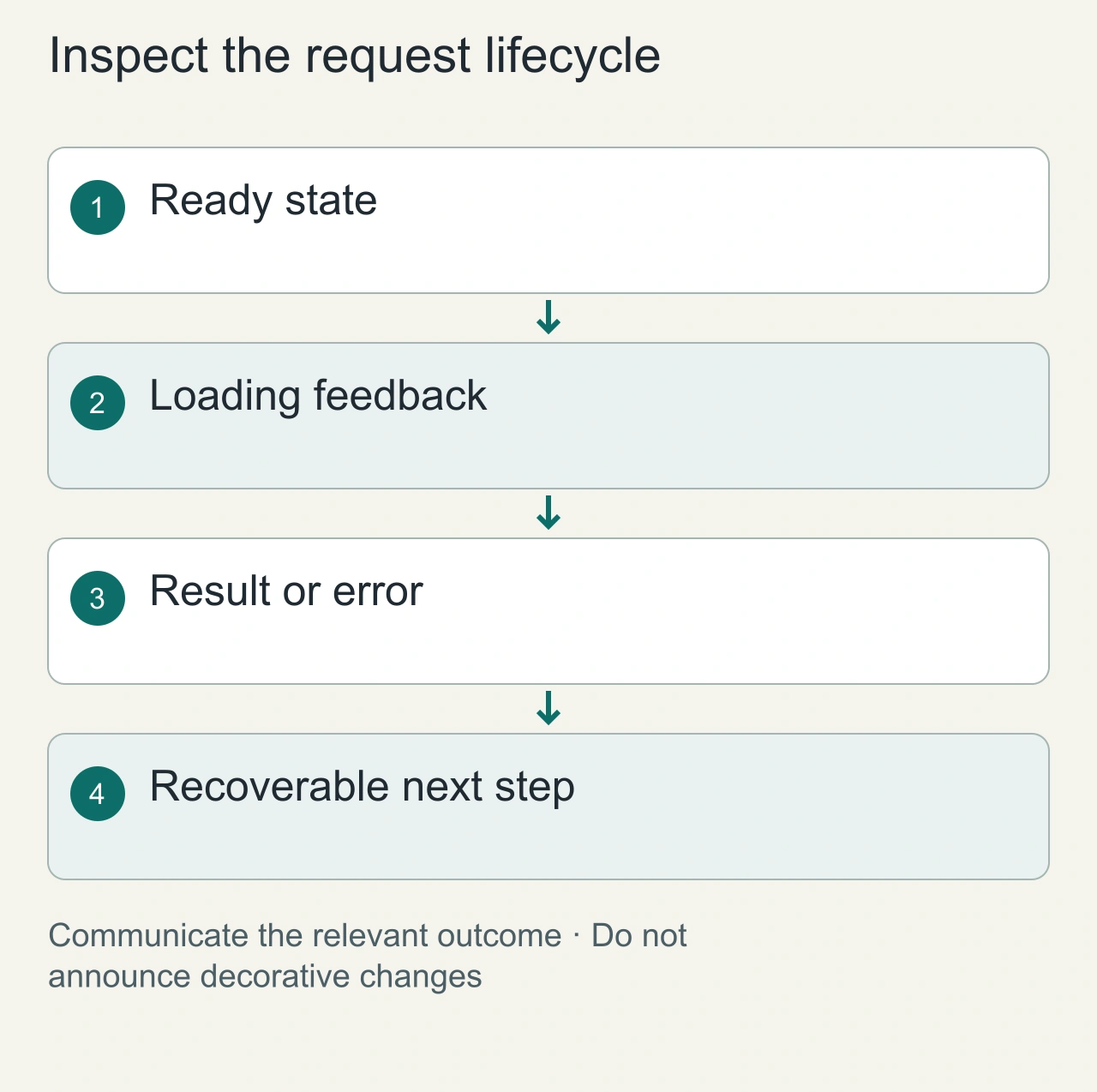
Run the same task with an assistive technology and record the environment precisely. Check names, roles and current values for the controls used in the task. Then submit a request and observe loading, success and failure. A screen reader user needs to understand the outcome without rediscovering the entire page.
Keep state messages specific. A result count or a concise failure explanation helps more than a generic update announcement. Avoid announcing every animation frame or decorative change. The purpose is to communicate an operational change that matters to the user's next decision.
Test the error recovery path with a harmless simulated failure. Can the user find the error, understand which input remains valid and retry without reentering everything? A polished initial render says little about this path. Keep the task result classified as pass, fail, blocked or not tested rather than collapsing the entire interface into one accessibility label.
Test matrix
| Task | Inspect |
|---|---|
| Keyboard navigation | Reach every action and exit each dialog |
| Focus changes | Follow focus after open, submit, error and close |
| Screen reader | Understand names, roles, values and updates |
| Form error | Identify the field and recover without losing data |
| Mobile layout | Complete the same task with zoom and narrow width |
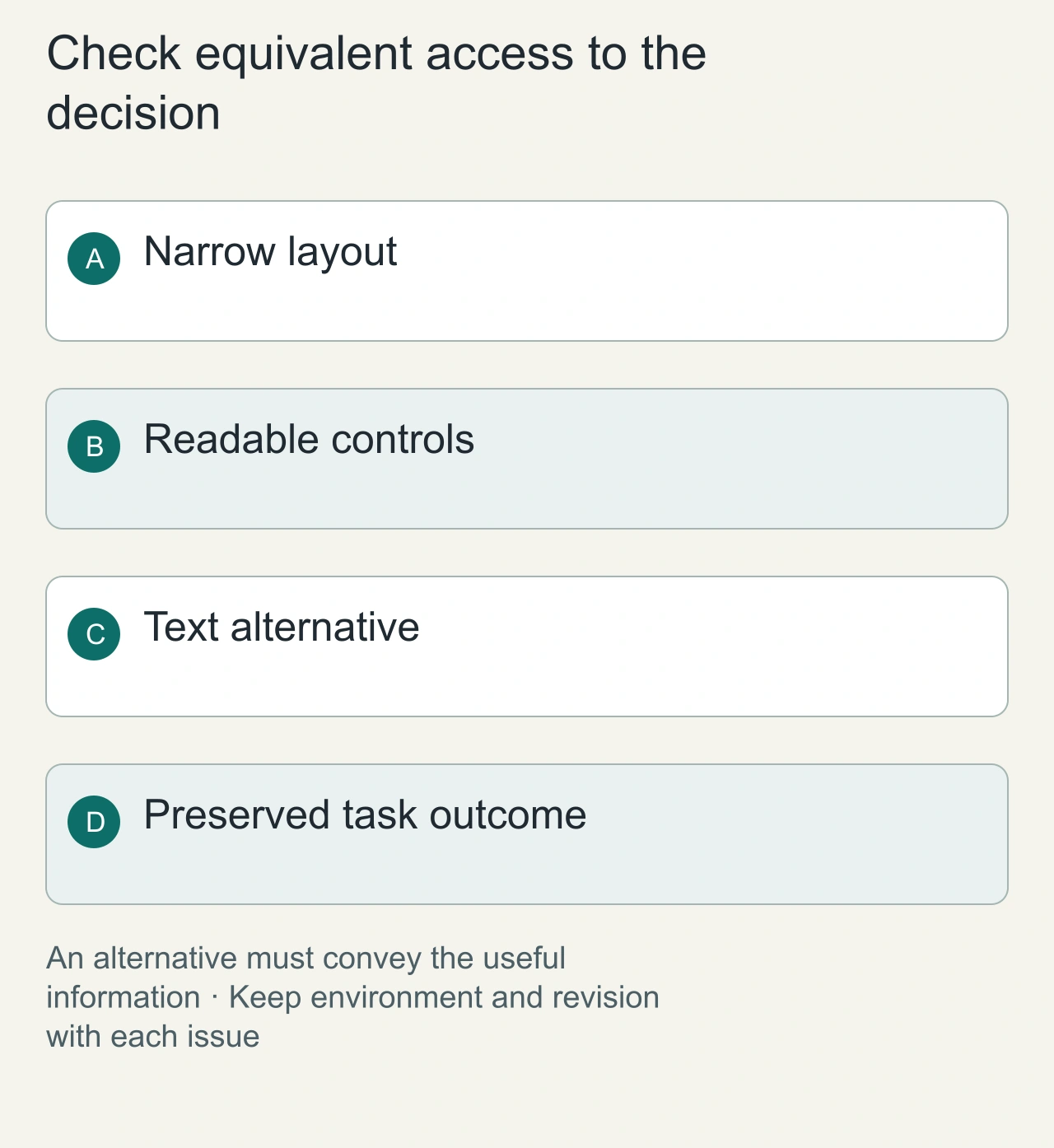
| Alternative output | Access essential information outside a graphic |
Record browser, assistive technology and versions. Include the exact prompt, generated revision and steps that reproduce the issue. “Works with a screen reader” is too broad without a task and environment.
Dynamic content is the difficult part
A control can be keyboard reachable while its result remains undiscoverable. Observe what happens after sorting, filtering and submitting. Check whether the user understands a loading state, a failed request and a completed result without scanning the whole page again.
Test regeneration while a user has focus inside the old interface. If that focused node disappears, define where focus should move and how the change is communicated. Avoid transferring focus merely because data arrives.
Record outcomes honestly
Mark each task pass, fail, blocked or not tested. Keep automated checks separate from keyboard and assistive-technology sessions. Automated detection can identify some structural problems; it does not establish that a person can complete the workflow.
Provide a conventional form or text result when it preserves the same essential operation. This is an engineering test protocol whose results remain pending. For the interaction model, see Intelligent UI explained.
Preserve essential information on narrow screens
At a narrow viewport, inspect whether controls, explanations and results remain usable in a sensible order. Zoom and text enlargement can expose clipped labels or controls that overlap. Compare the task's required information with what is actually available, rather than judging only the overall appearance.
For a chart, provide an equivalent textual summary or data view that contains the information needed for the task. The alternative should support the same decision. A decorative caption describing colors does not replace an inaccessible comparison. Keep units, filters and selected values connected to the alternative output.
Save the prompt, generated revision, browser, assistive technology and reproduction steps with each issue. This is a test protocol and contains no claim that a particular generated interface has passed. Use the findings to improve the actual implementation, then repeat the affected journey. Automated checks can supplement this record but do not establish that a person completed the task.