
A deploy and a client update are separate events
New code on the server does not guarantee that an already-open tab runs it. The document can reference older assets, a service worker can serve cached responses, and an installed update can wait before activation. Start by identifying which layer returned the old content.
Chrome's service-worker lifecycle guide explains the install, waiting and activation stages. MDN's service-worker guide provides the browser-side lifecycle context.
Record four observations
| Observation | What it distinguishes |
|---|---|
| Document build marker | Old HTML versus new HTML |
| Script URL and content hash | Which bundle the document requested |
| Response source | Network, HTTP cache or service worker |
| Worker controller and waiting worker | Active code versus an installed update |
These are diagnostic observations, not an instruction to clear every user's storage. Capture them before using a destructive troubleshooting action that erases the evidence.
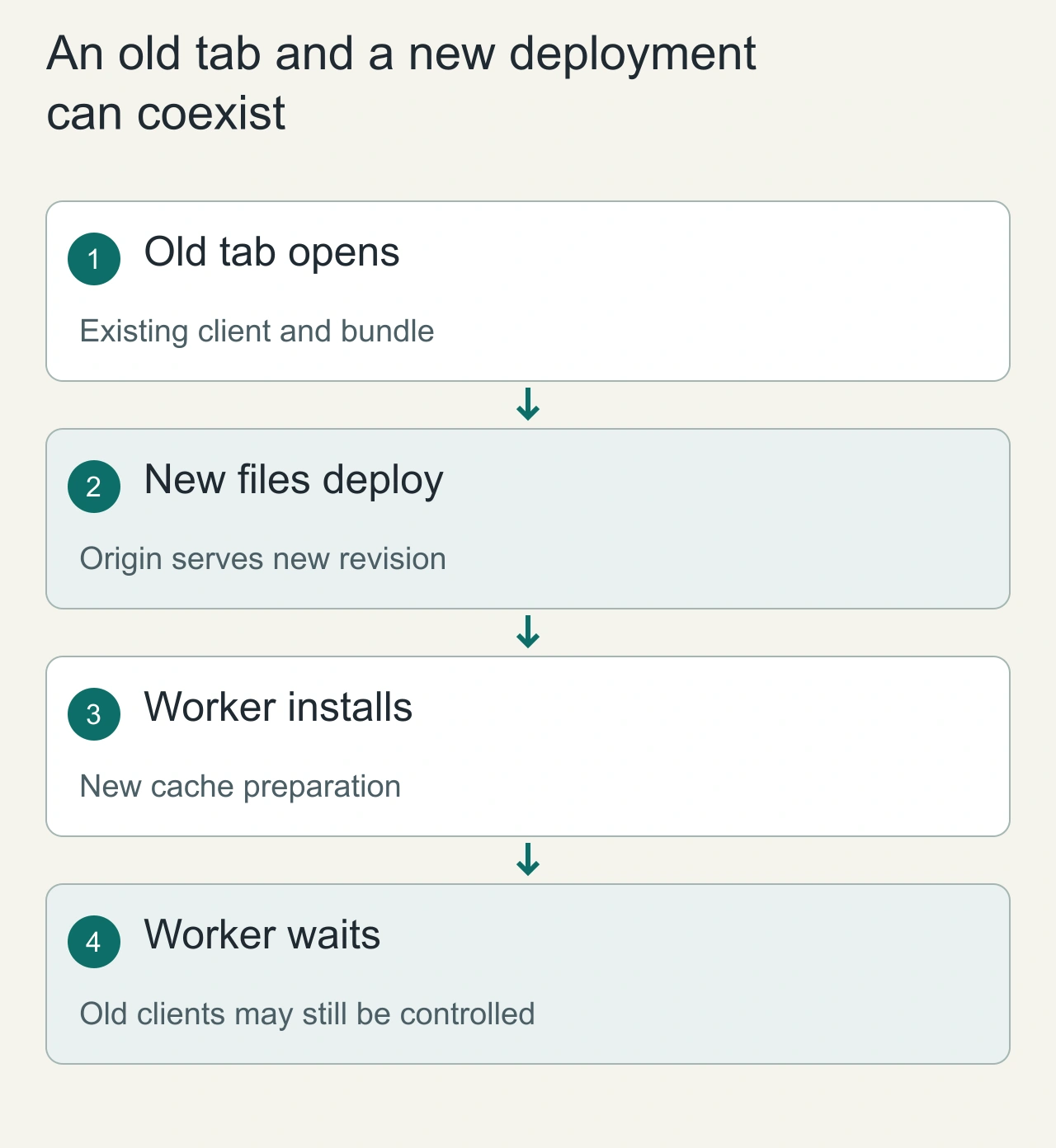
An old tab and a new deployment can coexist
A user keeps an application tab open while a new release is deployed. The tab still runs its original JavaScript, and its active service worker may remain the old version while an updated worker waits. Meanwhile, the server can serve new HTML and assets to another visitor. This mixed state is part of the browser lifecycle, not proof that the deployment failed. Problems arise when the release assumes that every open tab changes versions simultaneously.
Use content-hashed asset URLs and retain the assets needed by existing clients for an appropriate transition period. An old bundle can request a lazy-loaded chunk long after the new deployment begins. If that file has disappeared, the request can fail even though the current home page looks fine. Treat the application bundle, worker and cached resources as related versions with a migration policy. Give the user a clear update path and preserve unsaved work when refreshing. A deployment checklist that tests only a clean browser session misses the state that long-lived users experience most often.
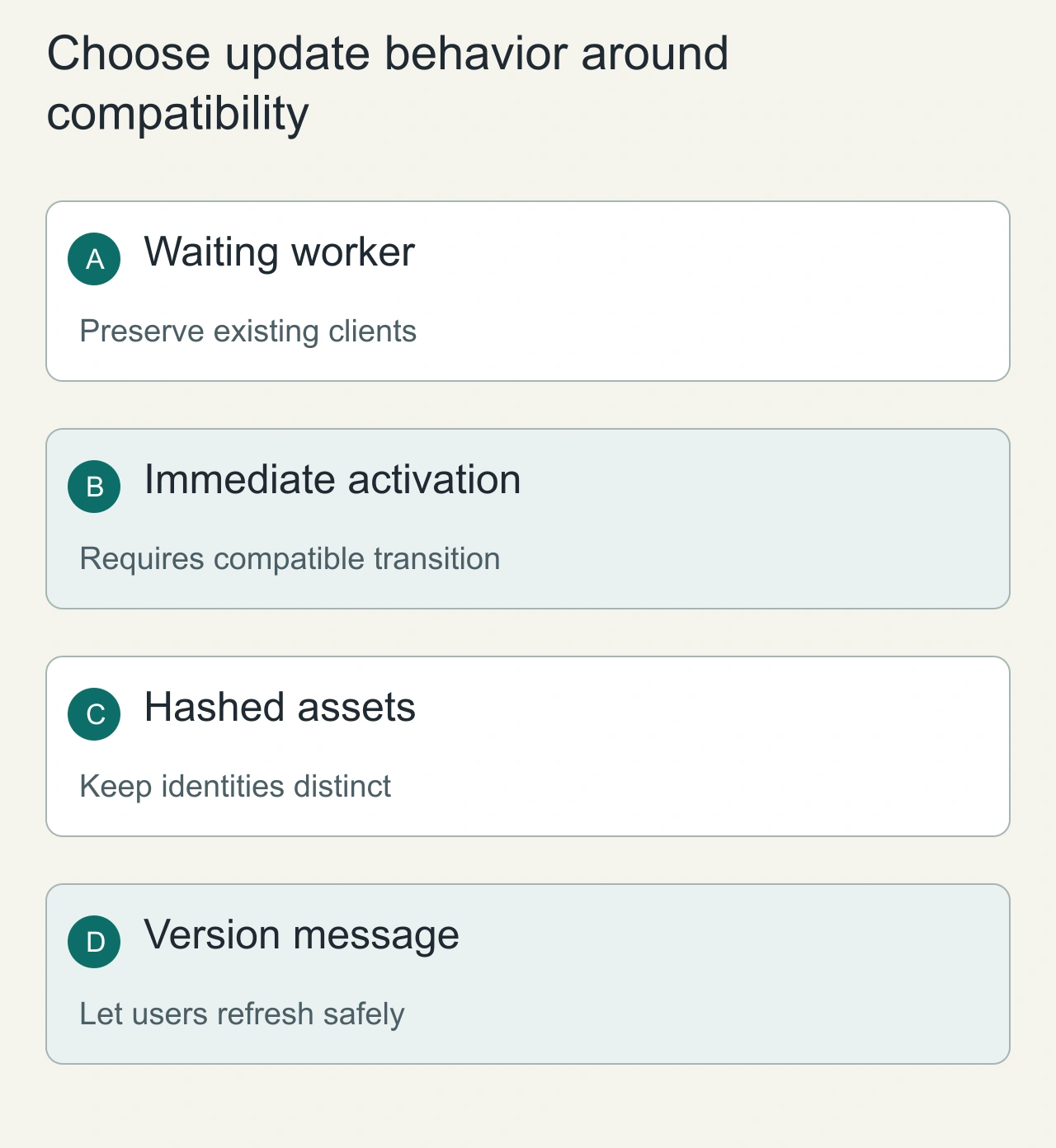
Choose update behavior around compatibility
Waiting for old clients to close can preserve a consistent application generation, but it delays the update for people who keep tabs open. Immediate activation through lifecycle controls can make new behavior available sooner, while creating compatibility responsibilities for pages still running old code. Do not enable skipWaiting and client claiming as universal fixes without considering what changes across the release. A cache deletion or response-shape change can affect an already-open page.
A user-facing update prompt is often a useful boundary: the application can tell people a new version is ready and reload after their current work is safe. For critical compatibility changes, design a transition that handles old clients explicitly rather than assuming a refresh event reaches everyone. Keep asset cleanup tied to the actual version policy and avoid deleting every cache from a newly installed worker before considering which active clients still need it. The best choice follows the application's statefulness, offline requirements and server compatibility window, not the desire to make a deployment number appear immediately in every tab.
An illustrative two-version exercise
Serve a disposable app with a visible build marker v1 and a content-hashed script. Open a tab and register a worker. Deploy v2, then compare a new tab with the original tab. Keep the network panel open and inspect whether a worker update is waiting.
Repeat with the network disconnected, then reconnect. Record the document version, script version and controller at each stage. This article describes a reproducible procedure; it does not claim measurements from a device we did not test.
Fix the identified layer
If HTML is stale at the CDN, inspect its cache policy and purge or expiry behavior. If a runtime route serves cached HTML indefinitely, change that route's strategy. If a new worker is waiting, choose an update experience: allow existing work to finish, or offer an explicit reload after saving state.
Immediate activation and clients.claim can change which worker handles an open tab's later requests. Mixed versions are possible when the page loaded one revision and a newer worker serves subsequent resources. Treat forced updates as an application compatibility decision rather than a universal fix.
Keep assets compatible during rollout
Content hashes separate revisions. Retain old referenced assets long enough for active documents, and coordinate HTML caching with release cleanup. A new HTML document pointing to a deleted bundle produces a different failure from a correctly functioning old tab.
Use versioned cache names and remove only caches your application owns. Shared origins can contain other applications' data. Logging the active build marker makes future reports much easier to interpret.
After changing policy, repeat the old-tab, new-tab, offline and reconnect matrix. Verify content identity alongside HTTP status. Continue with Workbox strategies to decide the actual response path.
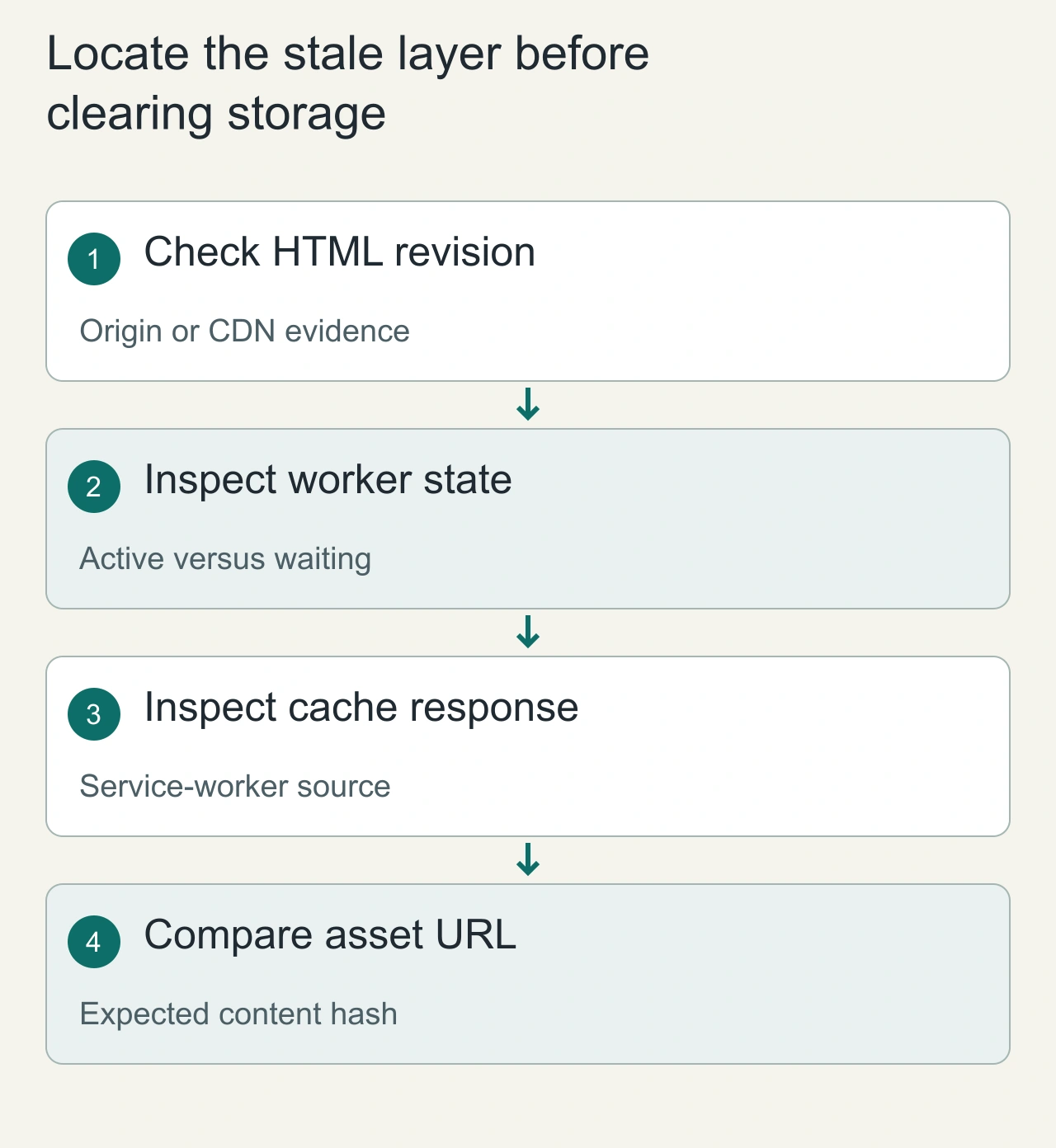
Locate the stale layer before clearing storage
When someone reports old behavior, record the page URL, visible application revision, active and waiting worker states and the exact asset URL involved. Compare response headers and content with the deployed revision. An unchanged URL can be stale at a CDN or HTTP cache even when the service worker is innocent; a cached worker response can be stale while the origin is correct. Clearing all storage removes useful evidence and may hide the same problem until the next deployment.
Reproduce with an old tab kept open across a release, then try navigation and lazy loading before accepting the update. Also verify a fresh visitor and an offline returning visitor. Track worker activation and chunk-load failures so that rollout issues are observable beyond anecdotal screenshots. A recovery action should target the identified layer and preserve customer data where possible. The final invariant is that every supported client generation can obtain compatible assets or receive a deliberate, safe upgrade path. That is stronger evidence of a successful deployment than a hard refresh that happens to show the newest home page.