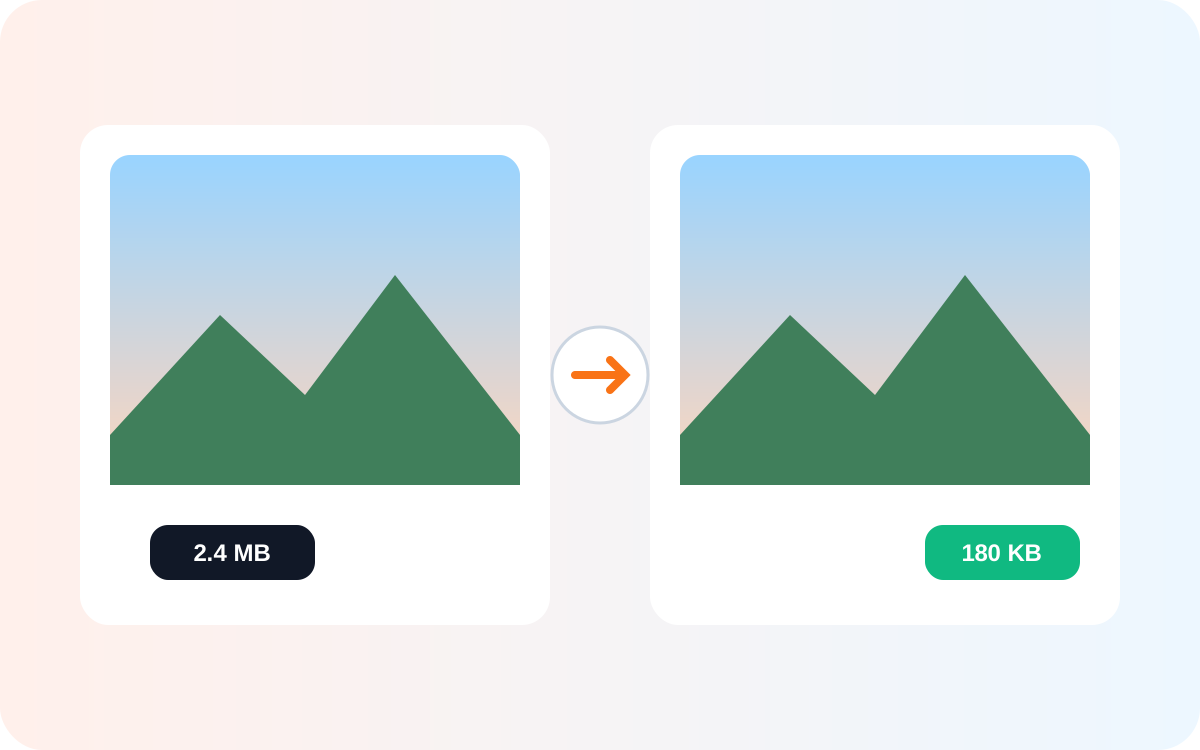
The best free image compressor is not simply the tool that produces the smallest file. The better choice reaches a useful size reduction while keeping text, edges, gradients, and photo detail acceptable—and uses a workflow you trust. For most web images, resize oversized sources first, then compress and compare the result at the size people will actually view it.
What “best image compressor” actually means
Current search results emphasize four recurring needs: meaningful file-size reduction, acceptable visual quality, no account before download, and privacy. Marketing claims such as “up to 90% smaller” are not comparable benchmarks because results depend on the source image, dimensions, format, and quality setting.
How to test quality versus bytes
Use the same source files for every tool: a detailed JPEG photo, a PNG UI screenshot with small text, and a transparent PNG graphic. Record input/output bytes and dimensions, output format, percentage saved, transparency, visible artifacts, processing location, and signup requirements.
Do not compare a resized 1200 px WebP against an untouched 4000 px JPEG and call the difference compression efficiency. Resizing and format conversion are separate reasons the file became smaller.
Free image compressors worth comparing in 2026
Compress Picture
Compress Picture currently states that JPG, PNG and WebP processing runs in the browser with no upload or signup, and provides a quality slider plus optional longest-edge resizing and batch processing.
Zipefy
Zipefy currently positions itself as a browser-based compressor, resizer and converter for JPG, PNG and WebP. It states that files remain on-device, no signup is required, and bulk processing is supported.
Sukat
Sukat focuses on target file sizes in KB or MB. Its current workflow combines local processing, target-size compression, resizing and output-format choices—useful when an upload form has a hard file-size ceiling.
PicaPic
PicaPic emphasizes browser-side WebAssembly, batch resizing and conversion to WebP or AVIF. It is a useful comparison when modern web formats matter more than simply re-encoding the original format.
Choose the right compression strategy
Photos
Reduce dimensions to the largest size you actually need, then try JPEG or WebP with moderate lossy compression. Inspect faces, hair, foliage, gradients and high-contrast edges before lowering quality further.
Screenshots and UI
Be conservative because small text and thin interface lines expose artifacts quickly. PNG can remain appropriate for sharp interface graphics; WebP can work when the result remains clean at the intended display size.
Transparent graphics
Check transparency after export. A smaller file is not a successful result if transparent pixels are flattened against the wrong background.
Hard limits such as 100 KB
A target-size compressor reduces trial and error. If exact targeting is unavailable, resize first and lower quality gradually rather than jumping to an aggressive setting.
Why resizing often saves more than another quality adjustment
If a camera image is 4032 × 3024 but an article displays it around 1200 pixels wide, keeping all those pixels and forcing quality very low is wasteful. Resizing first removes detail the page never displays at full resolution, often giving a better quality-to-size tradeoff.
Privacy: online does not always mean uploaded
An online compressor can process files locally. Compress Picture, Zipefy, Sukat and PicaPic currently state that processing occurs on-device. Treat these as vendor claims unless independently verified; for sensitive images, review privacy documentation and inspect network activity if necessary.
A practical image-compression workflow
- Keep an untouched original.
- Decide the maximum dimensions required.
- Resize an oversized source.
- Choose a suitable output format.
- Start with moderate compression.
- Compare at normal viewing size and at 100%.
- Check final bytes against your performance or upload target.
- Lower quality further only when the saved bytes justify the visual loss.
Try AiFolder's Image Compressor. If dimensions are the main problem, use the Image Resizer first.
FAQs
Does image compression always reduce quality?
No. Lossless compression preserves the decoded image; lossy compression trades some information for smaller files. Sensible lossy settings can still look effectively unchanged at normal viewing size.
Is WebP always better than JPEG or PNG?
No. The best format depends on the content, transparency, destination requirements and encoder settings. Compare real outputs instead of assuming one extension always wins.
Should I resize before compressing?
Usually yes when the source is much larger than its destination. Removing unnecessary pixels can save substantial bytes before aggressive quality reduction is needed.
Are browser-based compressors private?
They can be. Local processing means the image need not be uploaded for compression, but verify the provider's current privacy statement for sensitive material.
What is a good file size for a website image?
There is no universal number. A thumbnail, hero, logo and product photo have different needs. Aim for the smallest file that still looks appropriate at its rendered dimensions and fits your performance budget.
Can I compress to an exact KB size?
Some tools support target-size encoding, which is useful for hard upload ceilings. Otherwise resize first and adjust quality iteratively.