
Choose the workflow before the extension
A browser extension can assist writing or use page context without replacing your entire browser. The right candidate depends on whether you need feedback in text fields, help understanding a public page or a reusable sidebar. This is a documented-capability shortlist, not a same-task quality benchmark.
Grammarly's official Chrome publisher page identifies its browser writing tools. Sider and Monica describe browser assistant workflows. Install through the vendor's official link and confirm the store publisher; similarly named listings are not interchangeable.
Compare the data boundary
| Workflow | Context to inspect | Evaluation fixture |
|---|---|---|
| Writing assistance | Text entered into a page | A synthetic email with deliberate mistakes |
| Page summary | Page text and selected content | A public article with facts you can verify |
| Sidebar chat | Prompt and optional page context | A bounded question with a known answer |
Check the listing's site access, privacy disclosures and update information at installation. The pages reachable in our documentation review did not expose a complete, reliable permission manifest for every candidate, so this article does not invent exact permissions or install claims.
Choose between page assistance and writing assistance
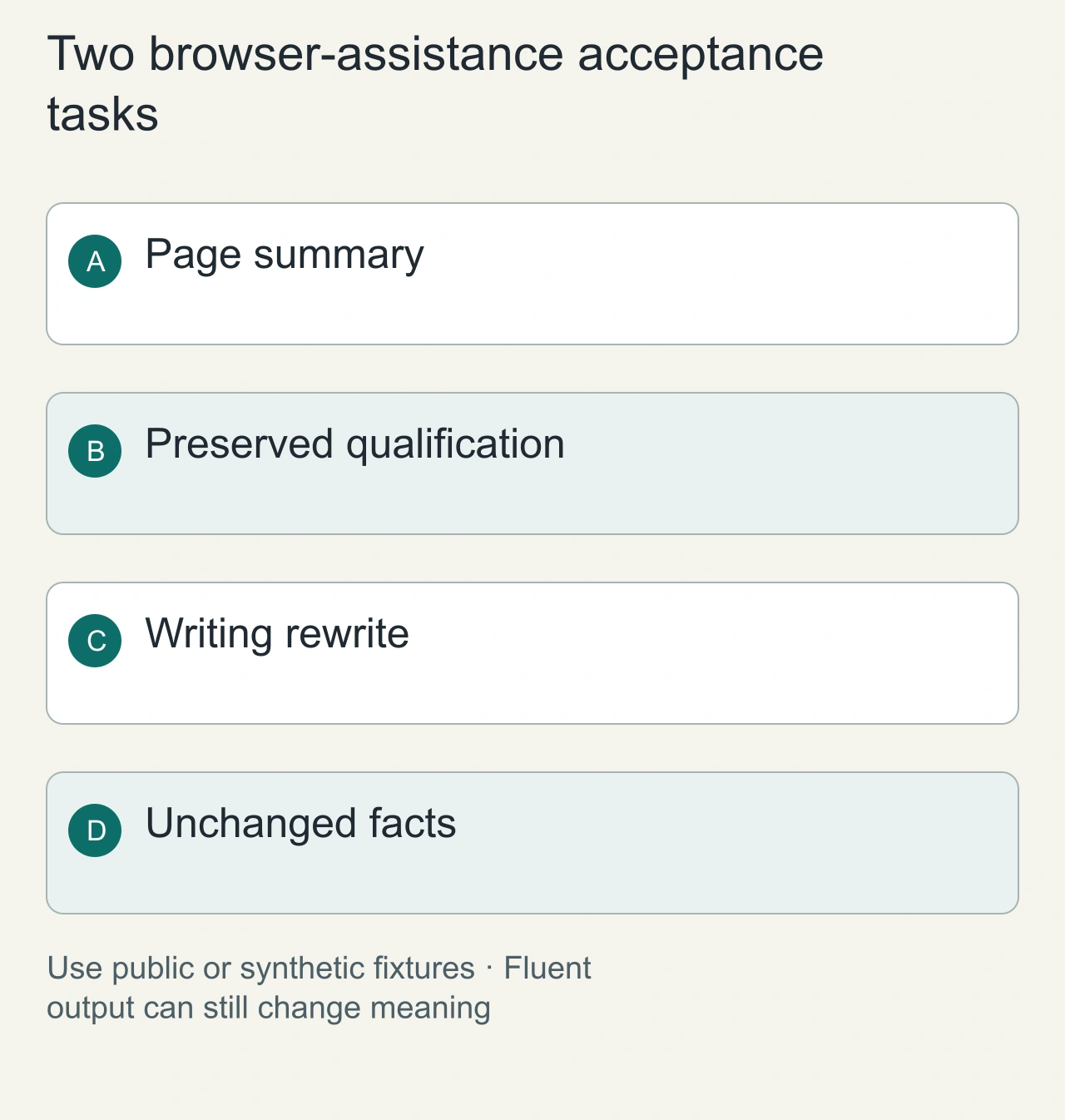
A page assistant needs to interpret the content you are reading. A writing assistant needs to preserve the meaning of the content you are composing. Test these separately. For a page test, use a public article with a qualification in the final paragraph. Ask for the central claim and its limitation. A summary that drops the limitation has failed the task even if it sounds confident.
For a writing test, prepare a short message containing a deadline, a number and a proper name. Ask for clearer wording while preserving those facts. Compare the rewrite with the original line by line. Do not evaluate only grammar or tone. A changed deadline is an operational error that an attractive interface can make easy to overlook.
Choose the extension for the task you repeat most often. If you need occasional page explanations, a narrower on-demand assistant may fit better than an always-active writing tool. If you need continuous editing feedback, inspect where it activates and whether you can exclude sensitive sites. The workflow should determine the access you grant.
Test the writing assistant in a field where you can still recover the original text. Save the input separately, apply a suggestion and check whether undo restores the previous version. Inspect how the assistant behaves when the page refreshes or the field loses focus. These are ordinary browser conditions that affect a repeated workflow. A good rewrite becomes less useful when the original is hard to recover or the suggestion lands in the wrong field. Keep the fixture free of private data while you establish these mechanics and the current access setting.
Understand when the extension sees a page
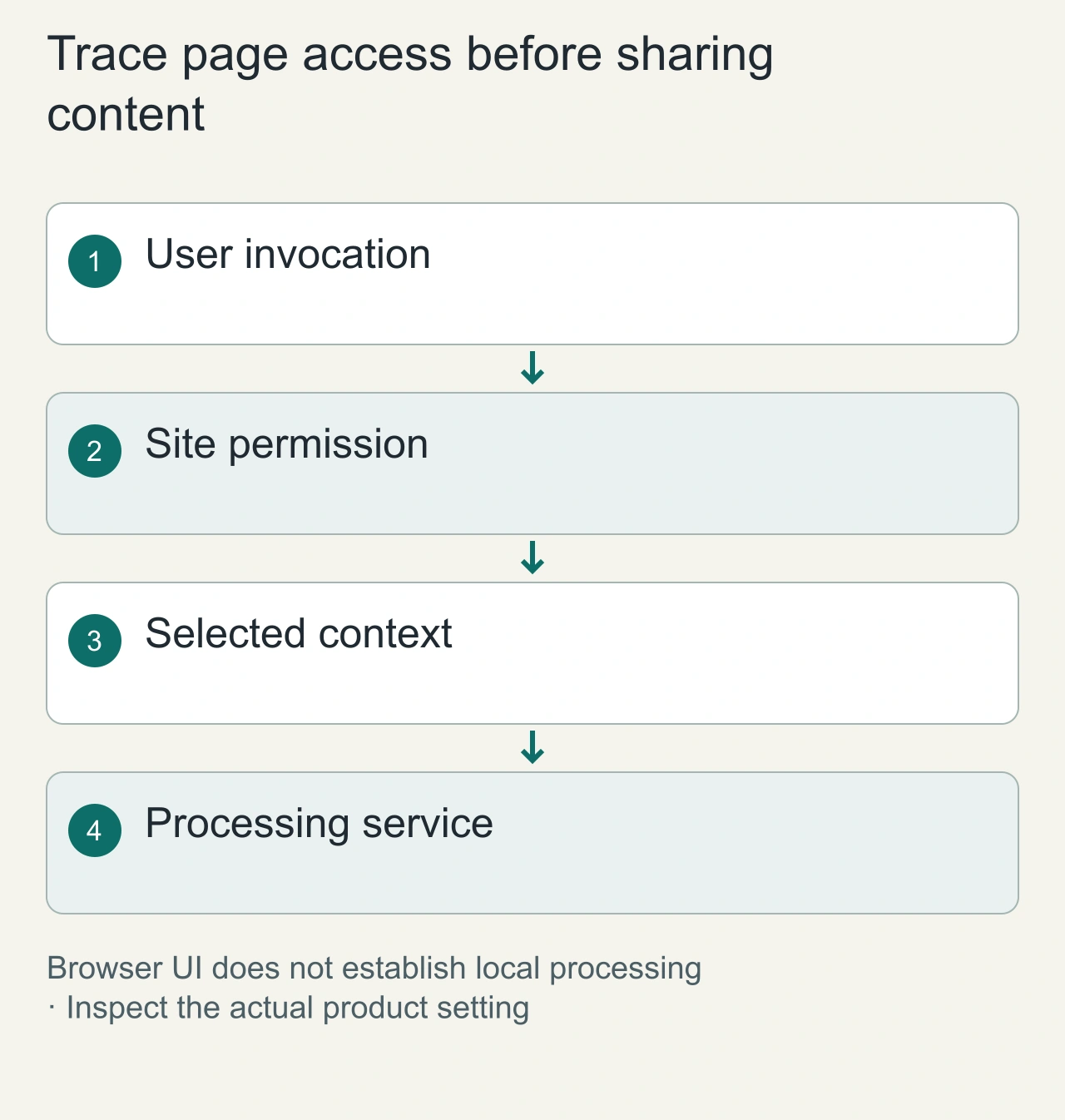
Inspect the installation permissions and current site-access setting. Ask which step requires page content, when that content is read and where processing occurs. Do not infer local processing merely because the interface is inside the browser. A browser button can call an external service.
Chrome documents temporary access through the [activeTab permission](https://developer.chrome.com/docs/extensions/develop/concepts/activeTab). That is one implementation option, rather than a claim that every assistant uses it. Check the actual extension's behavior and settings. Use on-demand or restricted site access where it supports the task you need.
Run a fixture on one allowed site, then inspect a site outside that allowance. The purpose is to understand the boundary and the user's recovery path. If the feature stops working, look at the permission state before reinstalling. A restricted extension may be behaving correctly. Keep account login, page permission and service availability as separate troubleshooting questions.
Restrict access where practical
Chrome's extension management guide explains installation and site-access controls. Limit an assistant to the sites where you need it. Avoid using private customer records as a first-run test.
A page summary can omit qualifications or misattribute a statement. Open the original paragraph and confirm the main claims. For writing feedback, check whether the assistant preserves meaning, proper names and tone rather than accepting every rewrite.
Cost is not the install price
A free extension download can require an account or a paid model tier. Check the live plan, rate limits and what happens after a trial. If you want an ongoing no-cost workflow, use the free-extension guide and distinguish confirmed free access from an unverified candidate.
Remove extensions that overlap without adding value, and review site access after a major update. Fewer broadly privileged integrations are easier to understand and maintain.
Explore AiFolder's AI directory for task categories. A browser such as Comet is a separate product category and should not be represented as a Chrome extension merely because it supports Chromium extensions.
Keep one repeatable browser workflow
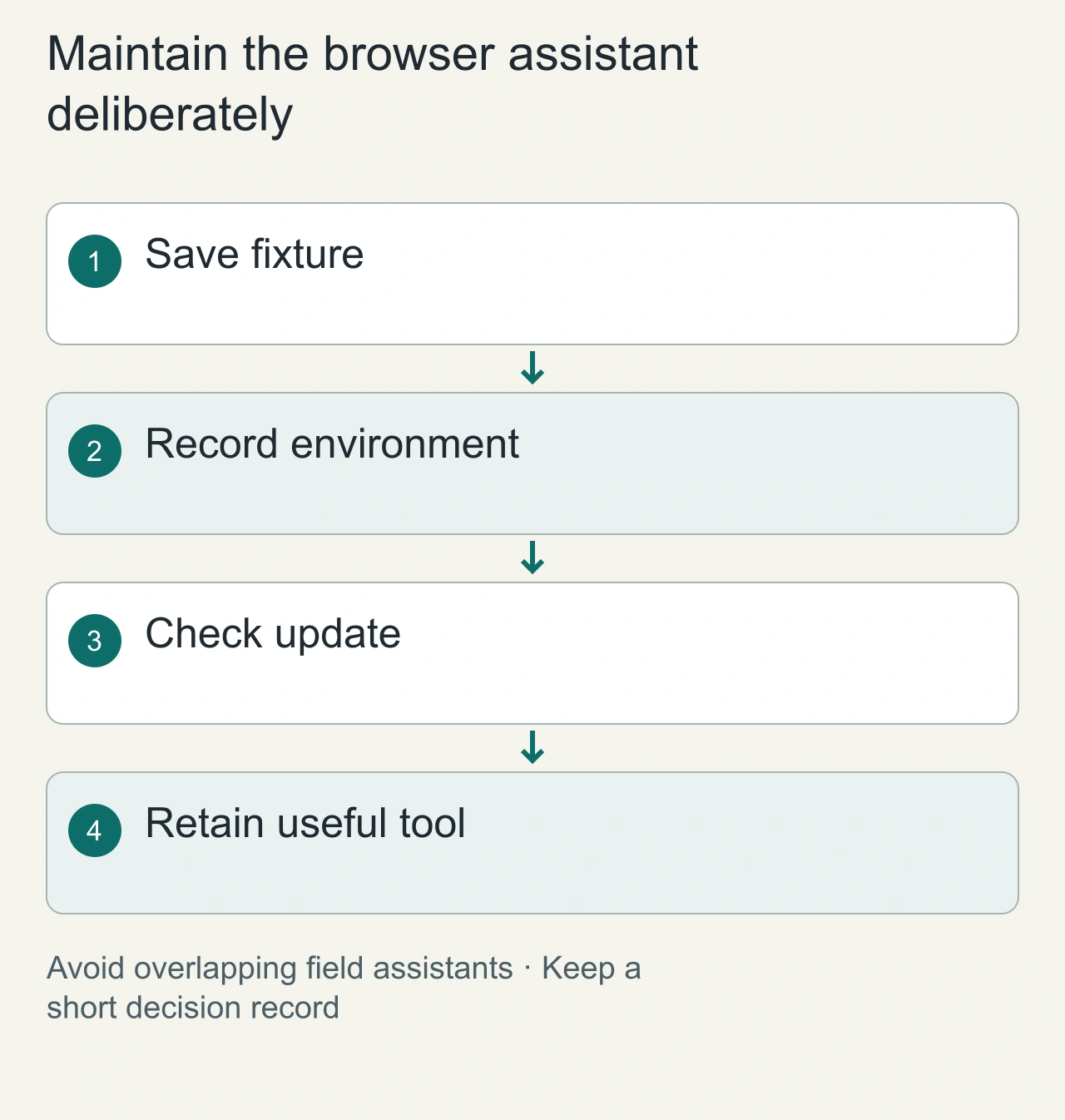
Save your fixture text and the expected preserved facts. Record extension version, browser version and the active plan at the time of evaluation. A useful first-run result establishes that workflow in that environment. It does not prove that every site or future update behaves the same way.
When two assistants compete for the same field, disable one and repeat the fixture. Overlapping rewrites can create confusing output or make it unclear which service received the text. Prefer one responsible tool per repeated task unless the second provides a distinct capability you can describe.
Review the extension after an update or a plan change. Check that the current account still supports the needed workflow and that excluded sites remain excluded. Remove candidates that add no practical value. The maintenance record can stay short: task, expected result, actual output and one reason for keeping the extension.