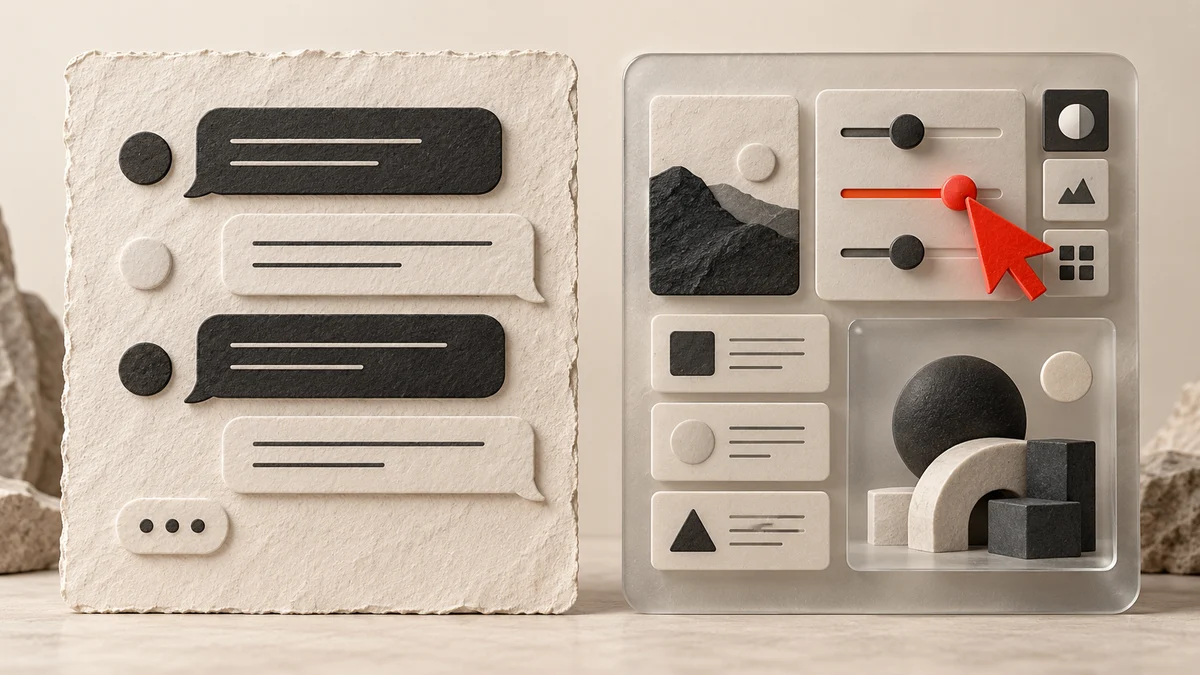
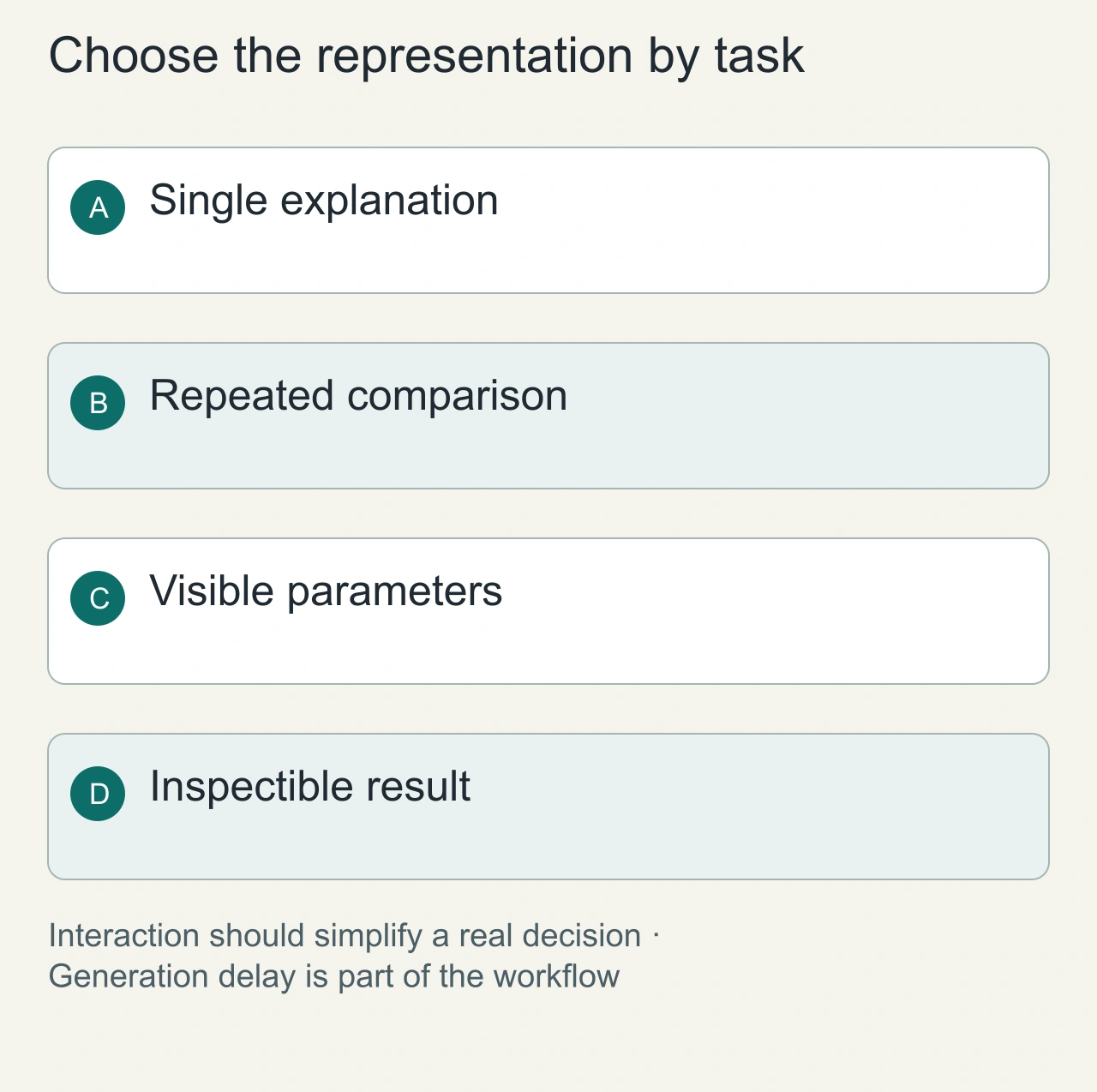
Text is useful when a person needs an explanation, a quotation or a durable record. Controls are useful when the person repeatedly changes parameters or compares a structured set of options. The choice depends on the task. This is a design framework, not a measured GPT-6 usability study.
Match the interface to the work
| Task | Useful interface | Why |
|---|---|---|
| Explain a decision | Text with sources | Reasoning remains readable |
| Adjust a scenario | Inputs with a result table | Parameters stay visible |
| Compare options | Sortable table | The comparison structure is explicit |
| Execute a consequential action | Review screen and clear confirmation | The proposed action is inspectable |
| Keep a record | Exportable text or structured data | The result survives regeneration |
A chart can clarify a relationship while concealing an exact value. Supply values and units beside it. A slider can make exploration quick while making a precise input awkward. Pair it with a numeric field when precision matters.
Match the interaction to the decision
Consider comparing three travel options with price, duration and departure time. Text can explain the tradeoffs in a paragraph. An interactive table can let the user change a threshold and inspect how the shortlist changes. The control earns its place when it makes repeated comparisons easier to understand, rather than merely making the response look like an application.
For a short factual question, generating a new interface may add delay and another state to learn. For a multistep selection, visible controls can preserve choices more clearly than a long conversation. Write the task and the inputs first, then choose the representation that keeps the user's decision inspectable.
Provide a simple path to the underlying explanation or data. If a slider changes the shortlist, show the active threshold and why an option was excluded. The interaction should expose the reasoning that matters for the decision. It should not hide uncertainty behind an attractive control.
For the travel comparison, give participants a price ceiling and a maximum duration, then include an option that satisfies only one constraint. This tests whether the representation helps preserve the complete decision rule. After selection, ask which constraint eliminated the near-miss option. A correct choice made for the wrong reason can become unreliable when the data changes. Keep that explanation separate from preference and completion time. The example can be run as a small internal study, but no outcome should be published until the sessions, errors and observations have actually been collected.
Treat generated interfaces as stateful software
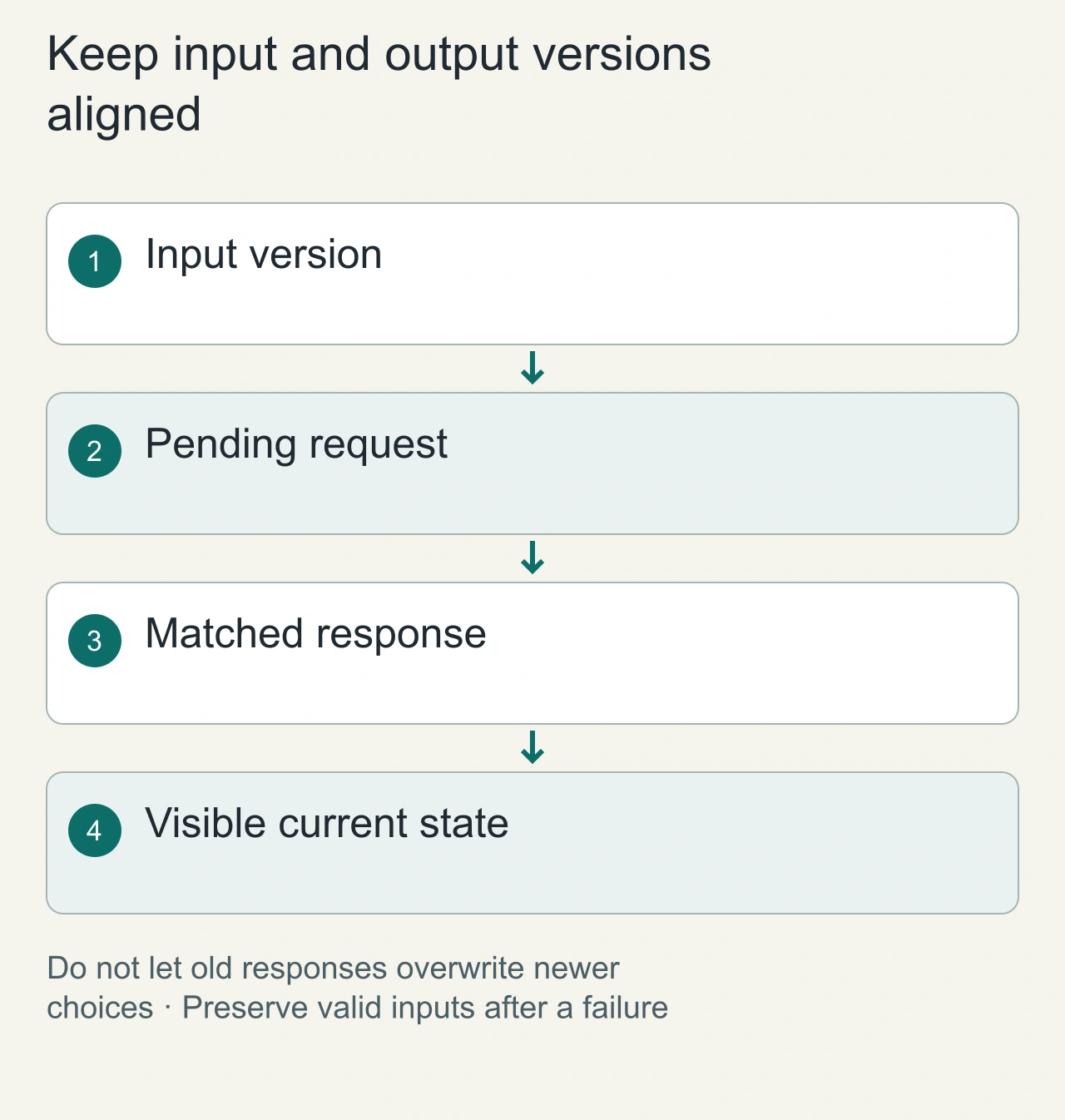
Keep the inputs that produced each visible result. If the user changes a filter while a request is running, associate the returned result with the correct input version. A late response should not silently replace a newer choice. This is a state-management problem even when the interface was generated from natural language.
Show loading and failure states where the user expects the result. Preserve valid choices after an error and offer a clear retry. If regeneration changes the available controls, explain what happened to the previous selection. The interface should distinguish a completed action from a suggestion or an operation that never reached its destination.
Inspect keyboard navigation and focus restoration using the [WAI keyboard guidance](https://www.w3.org/WAI/ARIA/apg/practices/keyboard-interface/). Test narrow layouts and equivalent textual output where graphics carry essential information. A successful pointer demonstration is only one path through the software.
Preserve state
Keep inputs, assumptions and the generated result together. Regeneration should not silently reset an important choice. Show which inputs produced the visible output, especially when multiple updates can be in flight.
An interface should explain a failed operation and provide a way to retry. A visually polished control is incomplete if a user cannot tell whether the action happened.
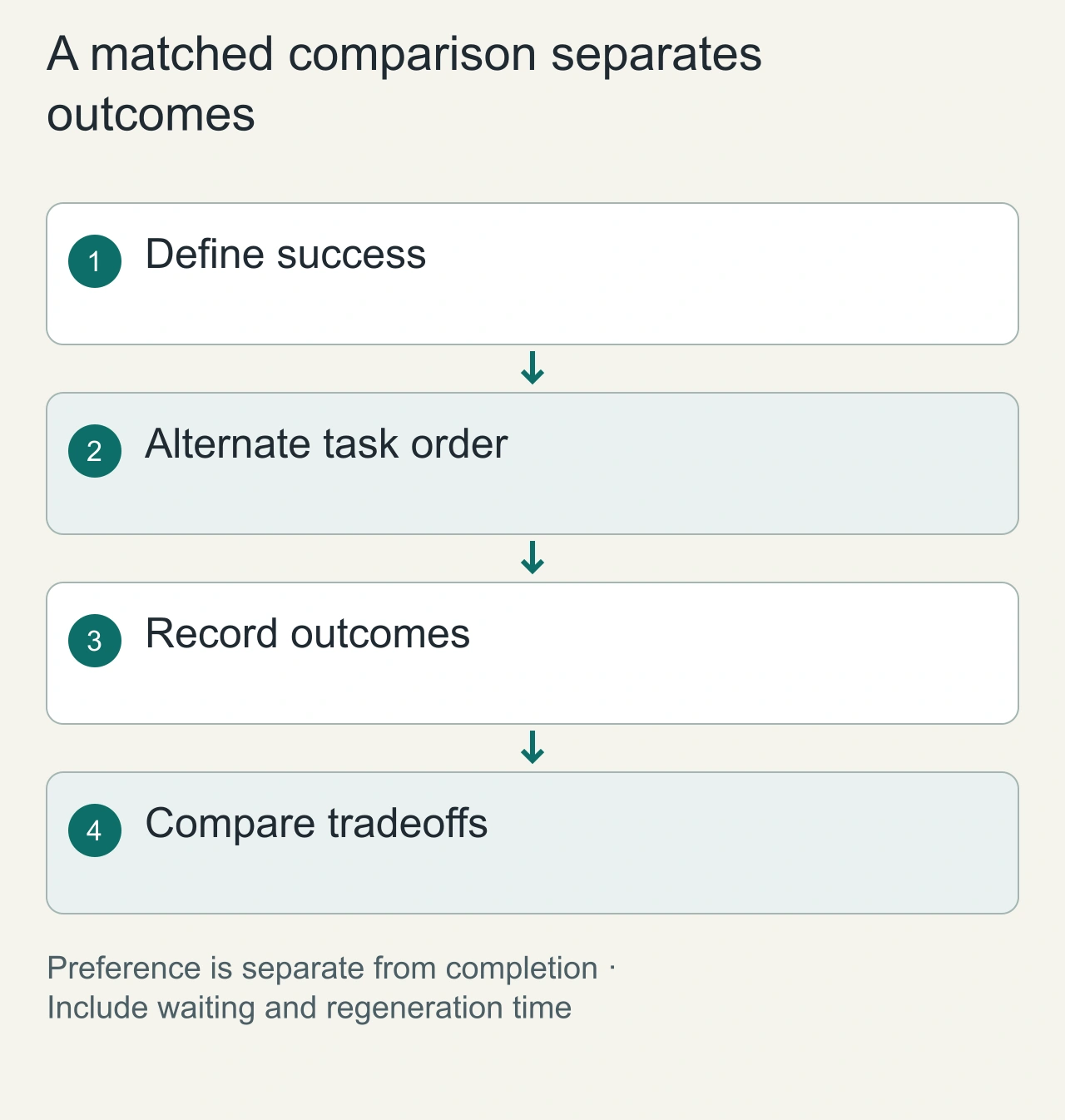
A matched comparison
Choose several tasks with objectively defined successful outcomes. Provide the same data, instructions and tool permissions to the text and interactive versions. Alternate their order across sessions to reduce learning effects.
Record completion, errors, time, corrections and users' interpretation of the result. Keep preference separate from task success. A participant may prefer an interface while making more mistakes with it.
Accessibility and cost of interaction
Test keyboard access, mobile reflow, labels and state announcements using a documented accessibility protocol. Include generation delays and regeneration failures in the workflow time; measuring only a button click understates the cost.
No measured advantage is reported here. Use the framework to decide where an interactive prototype deserves testing, then keep the evidence tied to its tasks and version. See Intelligent UI explained for the product context.
Compare the same task fairly
Create matched text and interactive versions with the same data, instructions and tool access. Define success before the session: the user selects an option satisfying specified constraints and understands one important tradeoff. Alternate which version appears first so learning from the first task does not always benefit the same interface.
Record task completion, errors, corrections and time across the whole journey, including generation and waiting. Ask about preference separately. A participant can prefer the visual experience while missing a constraint, or prefer text while taking longer. Keep those observations distinct rather than combining them into a universal better-interface claim.
Save the prompt, generated revision, task data and observation notes. This article reports a comparison framework, not a measured usability advantage. Use the framework to identify which interaction deserves a prototype and where a simpler text answer remains appropriate. The final choice should follow the task evidence and the maintenance cost of the interface.